Hello Aspose team,
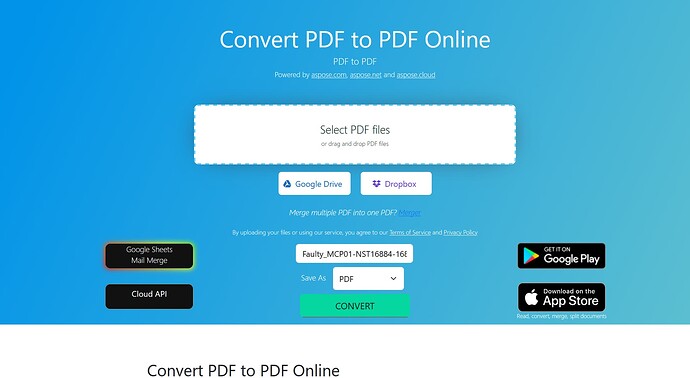
When trying one of your website to process PDF → PDF (Convert PDF To PDF Online)
Result is completely different compare when trying to use the code to do this.
Maybe you have some working snippet which is behind the UI on the Backend side which you can share.
As following official document give completely different result.
P.S
Just for the context it may sounds stupid why someone would do PDF to PDF.
In our app we developed full PDF specification our self to v2.0, however some customer files from very early version 1.4-1.6-1.7 are not working well, BUT become working better when passing through ASPOSE. So it is just an idea to see if it make sense to use aditional aspose import to try to solve some of the issue.
Include=“Aspose.Words” Version=“25.12.0”
using var stream = source.StreamFactory();
{
    var document = new Aspose.Words.Document(stream);

    PdfSaveOptions saveOptions = new PdfSaveOptions
    {
        Compliance = PdfCompliance.Pdf17,
        MetafileRenderingOptions = new MetafileRenderingOptions
        {
            RenderingMode = MetafileRenderingMode.Vector
        },

        DownsampleOptions = new DownsampleOptions { DownsampleImages = false },
        OptimizeOutput = false,
        UseAntiAliasing = true,
        UseHighQualityRendering = true
    };

    document.Save(pdfStream, saveOptions);
    pdfStream.Position = 0;

    // Save the PDF to disk for debug purposes
    var debugPath = System.IO.Path.Combine("C:\\tmp", "debug_output.pdf");
    using (var fileStream = System.IO.File.Create(debugPath))
    {
        pdfStream.CopyTo(fileStream);
    }
    pdfStream.Position = 0;
}
@VartanSaakian
What the UI does
The Aspose.Words → PDF conversion page (https://products.aspose.app/words/conversion/pdf-to-pdf) simply loads the PDF with Document and saves it with the default PdfSaveOptions. No custom rendering, down‑sampling or anti‑aliasing is applied.
Minimal code that reproduces the UI result
using Aspose.Words;
using Aspose.Words.Saving;

// source – stream, file path, or byte[] containing the original PDF
using (var src = source.StreamFactory())          // your existing stream provider
{
    // Load the PDF as a Word document
    var doc = new Document(src);

    // Save with default options (same as the web UI)
    using (var outStream = new MemoryStream())
    {
        doc.Save(outStream, SaveFormat.Pdf);   // equivalent to new PdfSaveOptions()
        outStream.Position = 0;

        // optional: write to disk for debugging
        File.WriteAllBytes(@"C:\tmp\ui_like_output.pdf", outStream.ToArray());
    }
}
Why your current snippet differs
| Your setting |
Effect |
Compliance = PdfCompliance.Pdf17 |
Forces PDF 1.7 compliance – the UI does not set this. |
MetafileRenderingOptions.RenderingMode = MetafileRenderingMode.Vector |
Forces vector rendering of EMF/WMF – UI uses the default (auto). |
DownsampleOptions.DownsampleImages = false |
Disables image down‑sampling – UI may down‑sample depending on source. |
OptimizeOutput = false |
Turns off output optimization – UI leaves it at the default (true). |
UseAntiAliasing = true, UseHighQualityRendering = true |
Improves rendering quality but changes the visual output compared with the UI. |
Removing those customizations (or explicitly using new PdfSaveOptions() without modifications) will make the programmatic result match the web conversion.
When you really need a “copy‑as‑is” PDF
If the goal is to keep the original PDF unchanged (no re‑rendering), Aspose.PDF is the appropriate library:
using Aspose.Pdf;

// copy source PDF to destination without any rendering
var pdfDoc = new Document(sourcePath);
pdfDoc.Save(destinationPath);
Next steps / information we still need
- Sample file (the PDF you are converting) – to verify that the UI and the minimal code produce identical output for your case.
- Exact differences you see (e.g., missing images, font substitution, page layout changes).
- Confirmation you are using Aspose.Words 25.12.0 (you already mentioned this) and the target .NET runtime.
Provide the above details and we can help fine‑tune the options if you need any of the UI’s default behaviours (e.g., specific compliance level).
@VartanSaakian
How to reproduce the Aspose.Words → PDF UI conversion
using Aspose.Words;
using Aspose.Words.Saving;
using System.IO;

// source – stream, file path, or byte[] containing the original PDF
using (var src = source.StreamFactory())          // your existing stream provider
{
    // Load the PDF as a Word document
    var doc = new Document(src);

    // Save with the default options (identical to the web UI)
    using (var outStream = new MemoryStream())
    {
        doc.Save(outStream, SaveFormat.Pdf);      // equivalent to new PdfSaveOptions()
        outStream.Position = 0;

        // optional: write to disk for debugging
        File.WriteAllBytes(@"C:\tmp\ui_like_output.pdf", outStream.ToArray());
    }
}
- The UI (
https://products.aspose.app/words/conversion/pdf-to-pdf) simply loads the PDF with Document and saves it using default PdfSaveOptions – no custom compliance, down‑sampling, anti‑aliasing, or metafile rendering is applied【Professionalize.Discourse】.
- Removing the custom
PdfSaveOptions you added (e.g., Compliance, MetafileRenderingOptions, DownsampleOptions, OptimizeOutput, UseAntiAliasing, UseHighQualityRendering) will make the programmatic output match the UI result.
If you need a true “copy‑as‑is” PDF (no re‑rendering at all), consider using Aspose.PDF instead:
using Aspose.Pdf;

var pdfDoc = new Document(sourcePath);
pdfDoc.Save(destinationPath);
Next steps
- Run the snippet above with the attached
Open_Geometries_0.00_to_0.05_lines.pdf.
- Compare the generated
ui_like_output.pdf with the UI result and let us know the exact visual differences (e.g., missing images, font changes, layout shifts).
- Confirm the .NET runtime version you are targeting, if you need any specific PDF compliance level, or if you must retain the original PDF unchanged.
Providing those details will allow us to fine‑tune the options if the default behavior still does not meet your requirements.
Result from ORIGINAL → VIA ASPOSE Code
Result from ORIGINAL - VIA ASPOSE Web
@VartanSaakian Aspose.Words is designed to work with MS Word documents. MS Word documents are flow documents and they have structure very similar to Aspose.Words Document Object Model. But on the other hand PDF documents are fixed page format documents . While loading PDF document, Aspose.Words converts Fixed Page Document structure into the Flow Document Object Model. Unfortunately, such conversion does not guaranty 100% fidelity.
To achieve what you need without loading the document into Aspose.Words DOM, you can try using LowCode API:
PdfSaveOptions saveOptions = new PdfSaveOptions
{
    Compliance = PdfCompliance.Pdf17,
    MetafileRenderingOptions = new MetafileRenderingOptions
    {
        RenderingMode = MetafileRenderingMode.Vector
    },

    DownsampleOptions = new DownsampleOptions { DownsampleImages = false },
    OptimizeOutput = false,
    UseAntiAliasing = true,
    UseHighQualityRendering = true
};

Aspose.Words.LowCode.Converter.Create()
    .From(@"C:\Temp\in.pdf")
    .To(@"C:\Temp\out.pdf", saveOptions)
    .Execute();
With LowCode API you can convert PDF to other Fixed Page Formats without loading document into Aspose.Words DOM, that allows to preserve the original document layout.
1 Like
@alexey.noskov work like a charm!!! you are hero.
Thanks for the help!
P.S
By any chance is there any nice docu available to read a bit about all those PdfSaveOptions ?
Would be great to learn deeper.
@VartanSaakian Sure, you can lean more about PDF save options in our documentation:
https://reference.aspose.com/words/net/aspose.words.saving/pdfsaveoptions/
But you should not that not all option will work upon PDF to PDF conversion. For example PdfSaveOptions.MetafileRenderingOptions are not applicable in such conversion because PDF document cannot contain metafiles.